


Introduction
This section describes how to deploy the aec360 Projects data model and connect it to the correct Dynamics environment so it can retrieve live project data for reporting. It applies only to the aec360 Projects data model, from version 10.0.46 onwards. The first time the model is opened, it prompts for the Dataverse API endpoint of the environment it should pull from. Completing this connection is the step that enables time-phased opportunity demand in Resource Booking Analysis, where opportunity hours are distributed across the calendar between each task’s start and end dates. The steps below walk through obtaining the Web API endpoint from make.powerapps.com, entering it at the prompt, and refreshing the model against the selected environment so it is ready for use.
Deployment Steps
Once the model is open, enter the Dataverse API address to proceed.
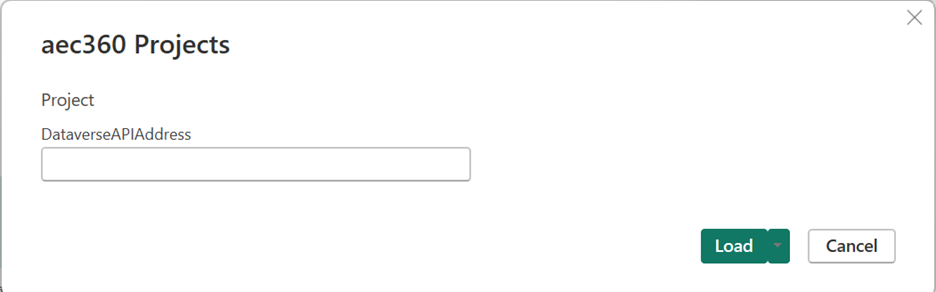
Step 1: Where to get the Web API address
To find the Web API address:
- Open Power Apps at make.powerapps.com.
- Select the correct environment using the switcher in the top-right corner.
- Go to Settings, then Developer resources.
- Copy the Web API endpoint. It looks like: https://yourorgname.crm.dynamics.com/api/data/v9.2
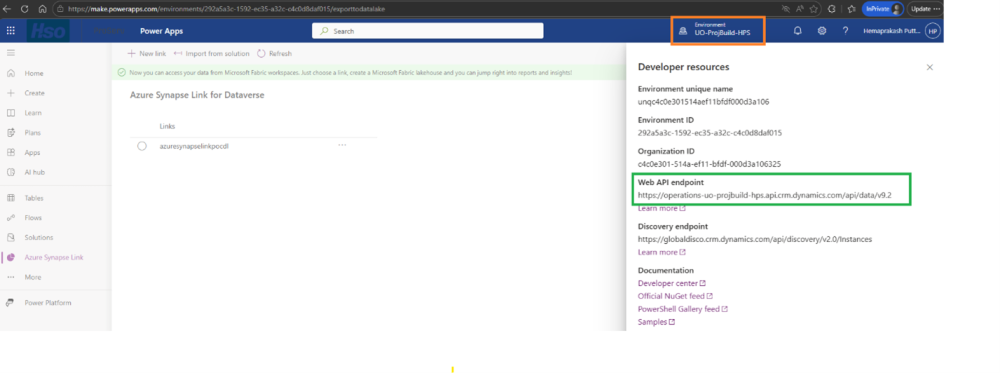
Step 2: Load the address into the model
- Paste the Web API address into the Project model, as shown below.
- Click Load.
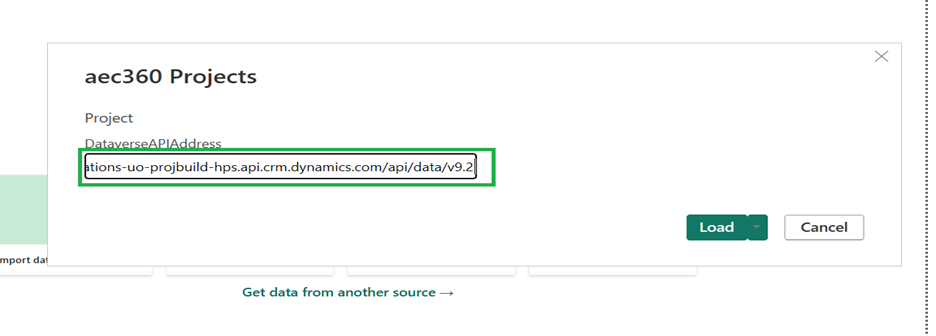
Step 3: Connect to the Fabric data source
- Sign in with your Microsoft account.
- Then click Connect.
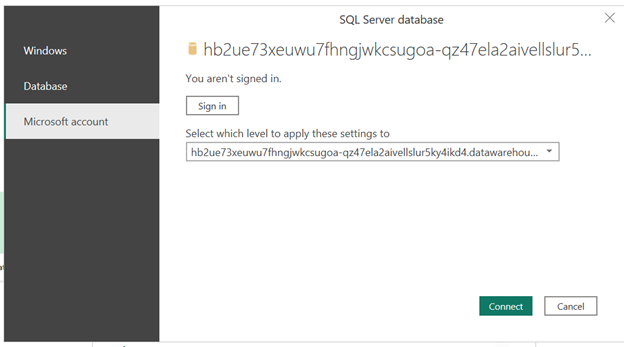
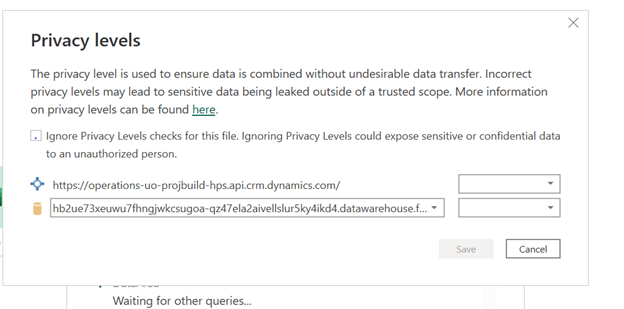
Step 4: Set the privacy level
In the Privacy Levels settings, enable the ‘Ignore Privacy Level checks for the file’ option.
Step 5: Refresh the data
- The data refresh will begin.
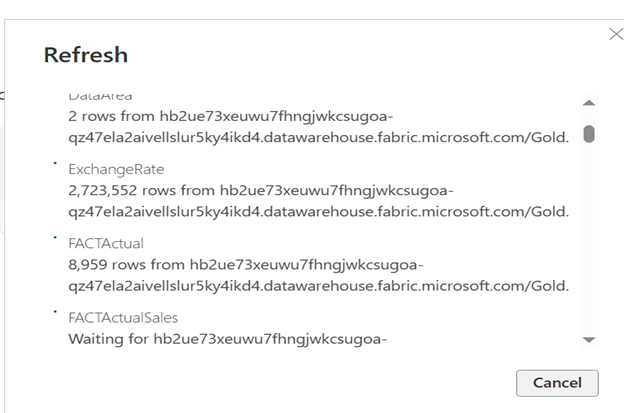
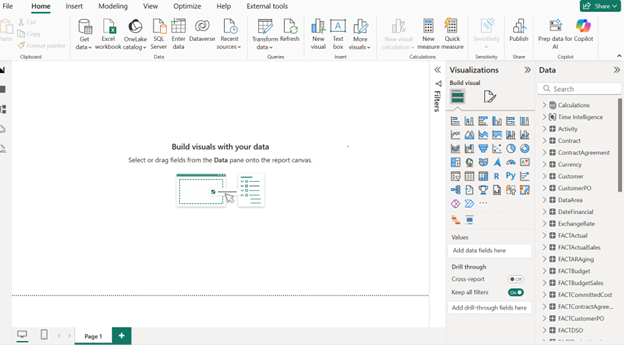
- When the refresh completes successfully, the project model will open.
Post your comment on this topic.