


Microsoft Fabric is an end-to-end Data & Analytics Software-as-a-Service (SaaS) platform that consolidates data movement, data engineering, data science, real-time analytics, and business intelligence into a unified environment. Fabric delivers a consistent SaaS experience with integrated security, governance, and pay-as-you-go pricing. It enables organizations to manage the entire data lifecycle within a single, cohesive architecture, from ingestion and transformation to analytics and machine learning. The Fabric Link configuration shows how data flows from Dynamics 365 to Microsoft Fabric for reporting in Power BI.
Fabric Medallion Architecture Overview
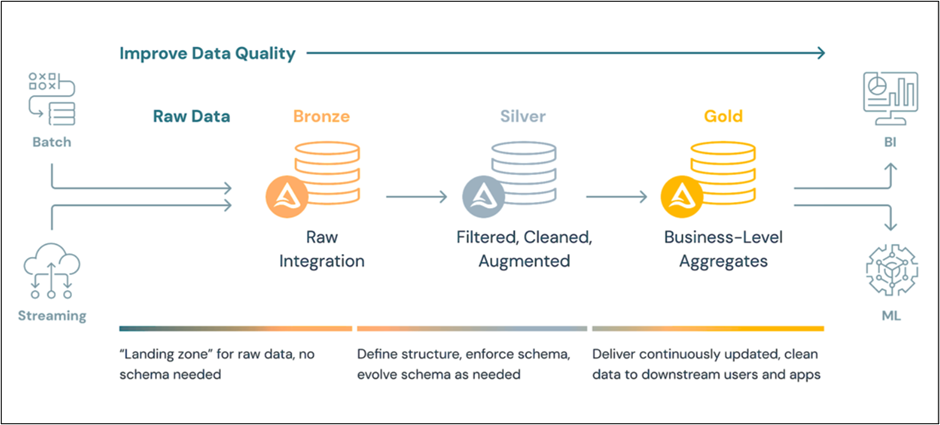
Fabric’s Medallion Architecture is designed to progressively refine and enhance data, improving its structure, quality, and usability at each stage from raw ingestion to business-ready insights.
Core Components
- Data Ingestion
- Batch Ingestion: Periodic loading of data from files, databases, or APIs into the Bronze layer. Ideal for systems where real-time processing is not required.
- Streaming Ingestion: Continuous data flow for real-time analytics and alerting, enabling immediate insights.
- Data Quality Progression: Data quality improves at each stage (Bronze → Silver → Gold) through cleaning, validation, and standardization.
- OneLake: A single, unified data lake built on ADLS Gen2. Functions like OneDrive for data, providing centralized storage for all workloads.
Medallion Layers
- Bronze Layer: Raw Integration
- Acts as the landing zone for raw data from external sources.
- Ingests data in its original format, replicates source structures, and adds metadata (e.g., load timestamp, process ID).
- Enables rapid data capture and ingestion, historical preservation, data lineage tracking, and reprocessing without revisiting the source.
- Silver Layer: Curated and Conformed
- Transforms raw data into a standardized, enterprise-wide view of key entities and transactions.
- Cleans, validates, matches, merges, and applies schema enforcement using Extract, Transform, Load (ELT) techniques to provide an “Enterprise view” of critical business entities and transactions.
- Delivers trusted, high-quality data for self-service analytics, advanced reporting, and machine learning.
- Gold Layer: Business-Ready Aggregates
- Provides consumption-ready datasets optimized for reporting and analytics.
- Applies data final transformations, denormalizes data, and creates read-optimized models.
- Outcomes: Provides consumption-ready, aggregated data models optimized for analytics and reporting, enabling fast, reliable insights for business domains such as customer, product, and inventory analytics.
Downstream Consumption
- Business Intelligence (BI): Tools like Power BI consume Gold layer data for dashboards and reports.
- Machine Learning (ML): Data scientists use Silver and Gold layers for training predictive models.
Create a Fabric Link.
To create a Fabric link:
1. Open make.powerapps.com
2. Select the environment > select Tables on the left navigation pane, and then select Analyze > Link to Microsoft Fabric on the command bar.
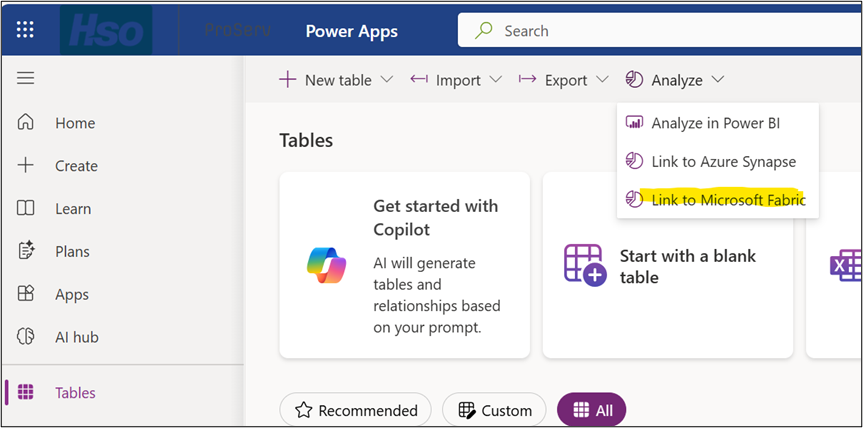
When linking to Fabric for the first time, a setup wizard will appear.
The wizard begins with Validate Configuration, which verifies prerequisites and Fabric subscription settings.
3. Next, select the Workspace tab in the wizard. For that workspace, you’ll need to establish a connection for the first time. When creating the connection, select the Organizational Account option.
4. Provide credentials for the Organizational Account and save the connection. To change credentials later, select Switch account and provide new credentials.
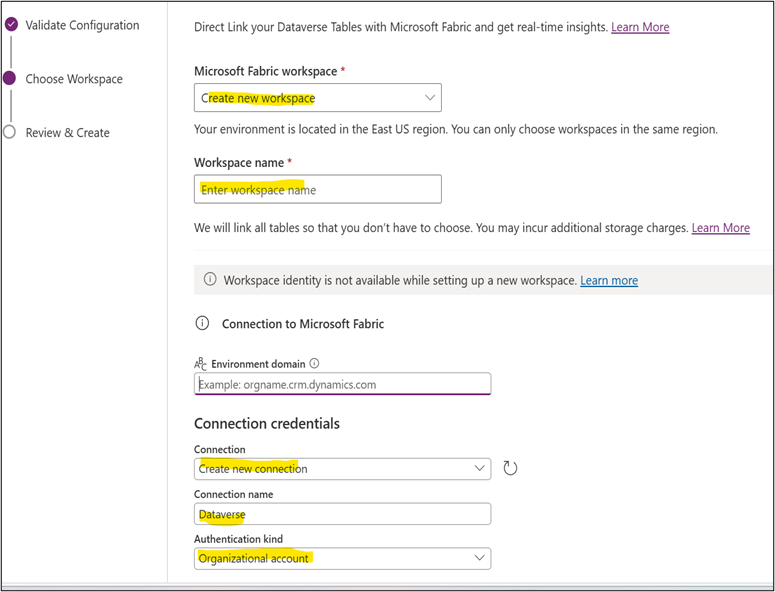
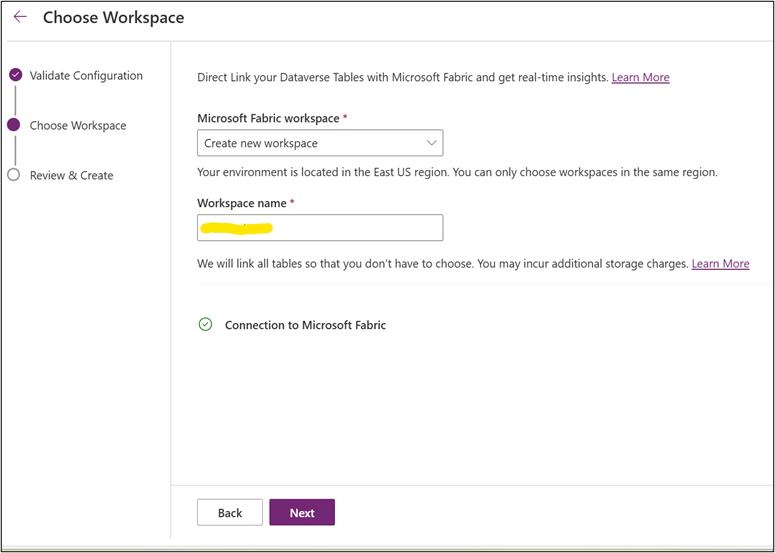
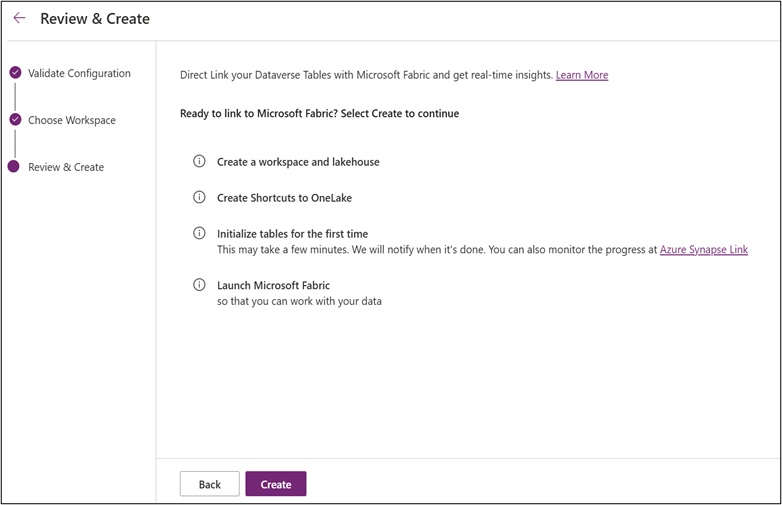
Once the connection is established, Fabric Link ensures that tables from Dataverse are seamlessly integrated and directly accessible within Microsoft Fabric.
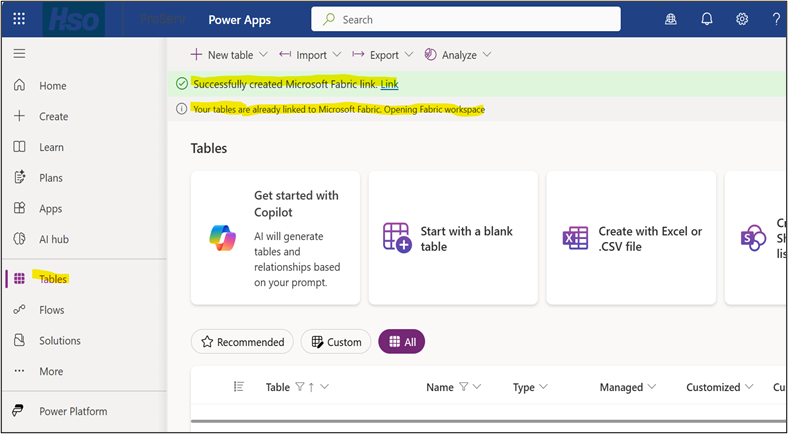
5.Click the link to navigate directly to the Fabric workspace to view both the Lakehouse and the SQL endpoint.
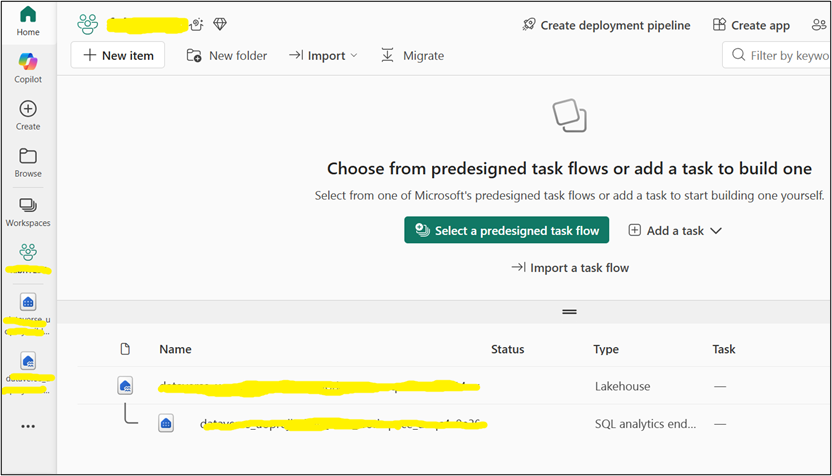
6. When selecting the Lakehouse, two options appear: Table view and File view.
- Table view: Contains Dataverse tables. These are stored in Delta Format in OneLake.
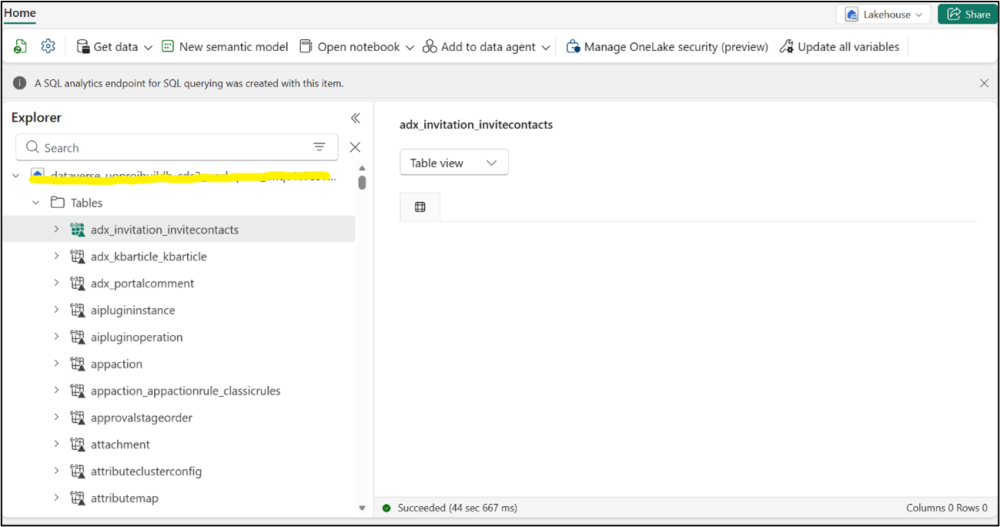
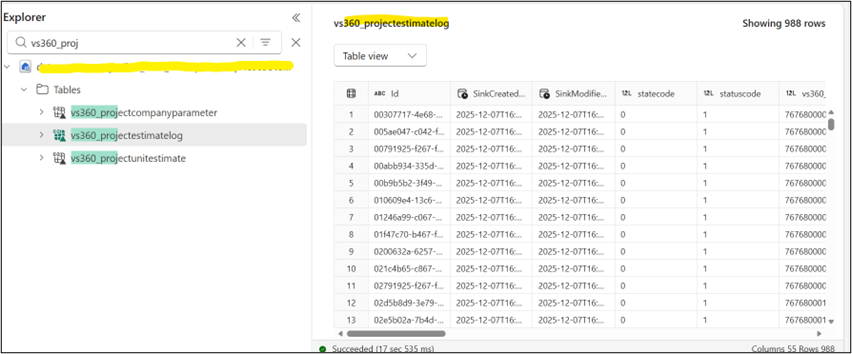
- File view: Displays how Dataverse tables are stored internally in OneLake as Delta files and Folders.
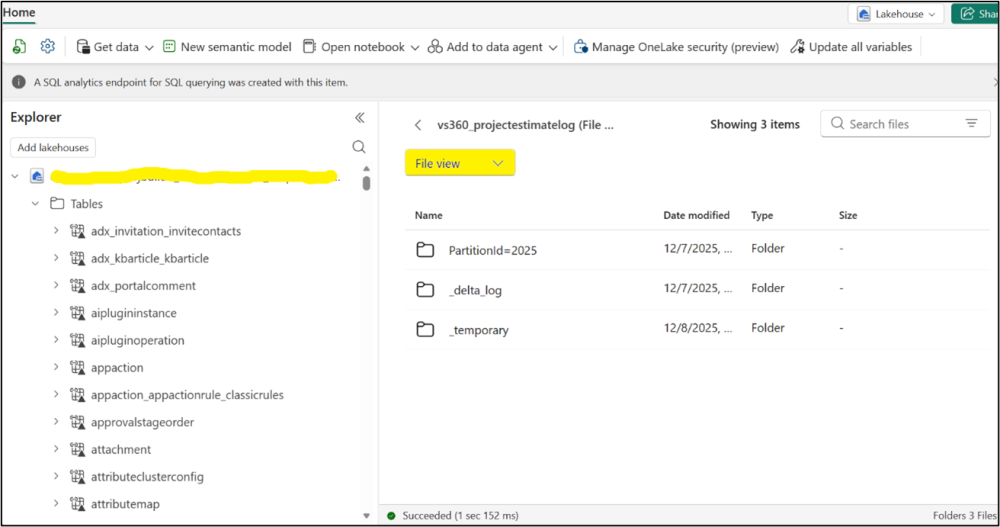
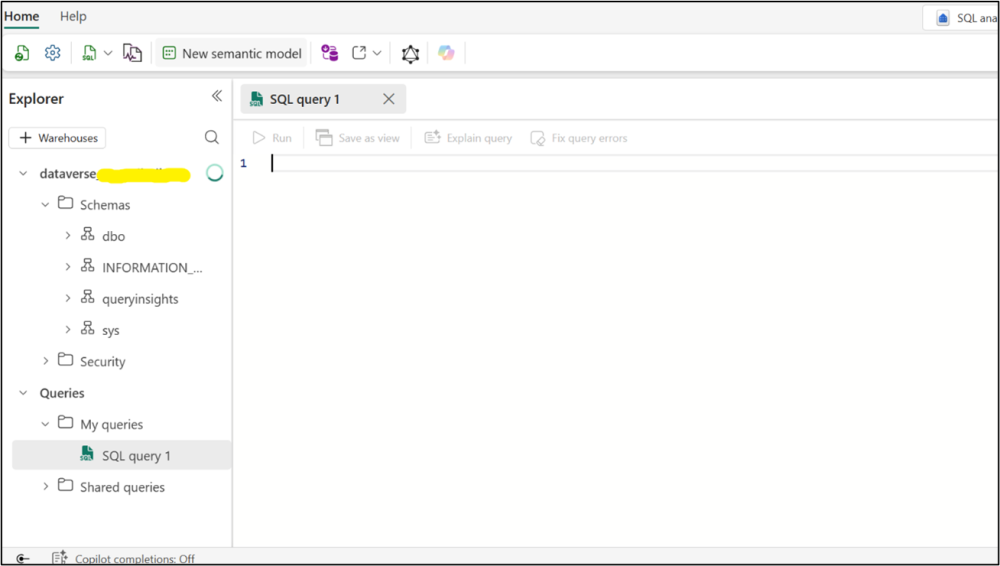
7. Selecting a SQL Analytics endpoint will open a SQL workspace to query Dataverse tables.
Post your comment on this topic.